Showing posts with label Windows. Show all posts

Sunday, 24 November 2013

Bitdefender Antivirus Plus 2014 Full Version With Patch

Security Widget - Enables you to keep track of all of your security related tasks, drag-and-drop files for quick scanning for viruses-right from your desktop!
Parental Control - Blocks inappropriate content, restricts Web access, monitors your children's online activity.

USB Immunizer - Immunizes any Flash Drive from viruses, when they are connected to your computer.
Active Virus Control - A proactive, dynamic detection technology which monitors processes' behavior in real-time, as they are running, and tags suspicious activities. Rescue Mode - If e-threats cannot be removed, the computer is re-booted in a trusted environment which is then used for cleanup and restoration.
Vulnerability Scanner - Checks for missing or outdated security software, missing Windows security patches. Bitdefender Autopilot - provides a hassle-free experience by making optimal security-related decisions without input from you. Social Network Protection - filters/blocks social-networking e-threats by scanning the links you receive from your friends.
Search Advisor - The Link Filter relies on intelligence provided by Bitdefender Cloud services to flag malware and phishing attempts in search engine results.
Personal Data Filter - Prevents critical data from ever leaving your computer.
Antiphising - Analyzes and blocks websites that support various scams or credit card phishing attempts.
Scan Dispatcher - finds and uses time-slices when system resource usage falls below a certain threshold to perform recurring scans of your entire system.

What's new in this version: Version 2013-17.15.0.682:

Safepay does not have images in the malware alert window;
TrafficLight integration with the new Opera browser;
Security report could not be opened with Internet Explorer 11 on Windows 7;
Parental Control - Schedule blocking does not display the alert in the browser;
Parental Control - SSL certificate is not installed on a new Windows account in Opera and Firefox;
Custom scan tasks scheduled to start at system startup do not start as scheduled;
Safepay - No tab navigation available when multiple tabs are open;


Installation Guide:

1 - Install the software.
2 - Register Mybitdefender account.
3 - Boot into safe mode and use the trial reset to install the auto-reset function or to use the manual reset.
3 - For autoreset: Restart/Shutdown Windows to reset the trial date. If you are using Windows 8 with UEFI bios, then you have to restart everytime you want to reset the trial date.
3 - Done,enjoy.

Use of patch
1 - install your antivirus
2 - restart your pc in safe mode
3 - run patch and hit year 2045
4- restart your pc normally   Done


Download Bitdefender 2014 Antivirus Plus Full below
 
Continue Reading

Install Metasploitable On Virtual Box


The simple way to learn about hacking is hands on and try by ourselves in our own machine, that's why today we will have a simple tips and trick about how to install Metasploitable on Virtual Box.
Metasploitable is a Linux distribution built for testing security tools and learning penetration testing. The Metasploitable virtual machine is purposely configured with many vulnerable services which can beexploited to gain access to the system. You can use tools such as Nmap, Nikto, and Metasploit to discover services and identify vulnerabilities within those services and learn how to exploit them.
Many people don't realize the importance of practicing, most of them just asking the fastest and instant way to learn about hacking and rushing to try pentesting in a real world because the intention is to hack someone or to hack asystem or to vengeance, etc. If you do learn hacking with your passion, what you do is only hands on in your own lab and learn about how things work(e.g:in network, program, web, etc), without you realize you already know many things, knowledge, new skills, and even covered something during your hands on, so don't underestimate practicing :-)
As we already read about the Metasploitable description above, the disc image included with vulnerable service that can be exploited.
Requirements:

How to Install Metasploitable on Virtual Box:

1. Download and install the Virtual Box on your machine (on this example was on windows machine).
2. When installation finished, open your Virtual Box and click New.
Install Metasploitable on Virtual Box
3. You can give a name, we give the name Metasploitable just to make sure the name was understandable and easy to recognize.
Install Metasploitable on Virtual Box
4. For the memory, you can just leave to 256MB, but if you have more RAM, you can increase this amount.
Install Metasploitable on Virtual Box
5. In this create virtual machine window, you can choose the Metasploitable image location that we've already download before (after extract the ZIP file). Click the folder logo on bottom right and locate the Metasploitable imagelocation.
Install Metasploitable on Virtual Box
When finished, click Create.
6. The next step is we need to start the machine we just installed. Choose the Metasploitable OS and click Start.
Install Metasploitable on Virtual Box
7. The Metasploitable machine now booting and there is log in window.
Install Metasploitable on Virtual Box
By default the username: msfadmin and password: msfadmin. You can change the username and password after log in and become root.
Conclusion:
1. If we see the message warning "Never expose this VM to an untrusted network". If you're in a public wi-fi or publicnetwork where everyone connected to the same network, it's good and better if we keep this network inside a NAT since this OS was vulnerable. Otherwise you can make it accessible so it can accessed by your attacker machine.
2. The first run after you install this exploitable OS, you can give a try to run your NMAP or Metasploit Framework orArmitage.
Hope it useful :-)

Share this article if you found this post was useful:

Continue Reading

Create Bootable USB Kali Linux On Windows

Almost one month busy doing ABC's thing, today we will continue with our tips and trick how to create bootable usb kali linux on Windows.
I believe most of you maybe already know how to create a bootable usb, but let me do some enlightenment for they who haven't know how to create bootable usb kali linux on Windows.
We can use this method not only for kali linux, but we also can create a bootable usb for backtrack linux, ubuntu, debian, etc…
Requirements:1. USB Stick.
2. USB Installer (Download Here)
Step by step how to Create Bootable USB Kali Linux on Windows:
1. Download the USB Installer from the link above, and double click, it is a standalone executable file. Plug the USB we want to use to create the bootable usb.
2. On the USB installer window
Create Bootable USB Kali Linux
Step 1: Choose which linux distro or O.S we want to put on our USB
Step 2: Locate the .ISO file of our O.S we want to put on our USB
Step 3: Select the USB drive letter. Make sure you don't choose your external harddisk :-) check the format drive to make sure we clean up all the content of our USB
Click Create
3. A pop up alert window will appear. Make sure we check again if there's something wrong or missing. Click Yes to start the bootable usb creation process.
Create Bootable USB Kali Linux
4. Now we need to wait for the application to accomplish the tasks. The time taken is depend with which distro or O.S we want to create.
Create Bootable USB Kali Linux
When finished, just click Close and our USB was ready to boot.
5. Now we will continue to set up the boot order from our computer BIOS to USB. The picture below was taken from my Acer Aspire one netbook.
Create Bootable USB Kali Linux
you can press F2 to go to BIOS setup or F12 to change the boot device.
6. If we choose F12, here is the preview on my netbook
Create Bootable USB Kali Linux
Change the USB HDD order into number one to boot from the USB.
7. If we choose F2 or edit from BIOS setup.
Create Bootable USB Kali Linux
We must change the boot priority order and make sure the USB HDD / flash disk is in order number one.
Conclusion:
1. Make sure your USB storage size is more than or equal 4 GB, more is better than less :-)
Hope it's useful :-)
Share this article if you found this post was useful:

Continue Reading

Wednesday, 20 November 2013

What Is Keylogger

keyloggersIn this tutorial i am going to talk about the most use piece of software besides from RAT by hackers to observe your activities on your computer and that is keyloggers. A keylogger is a software or hardware device which monitors each and every key typed by you on your keyboard. I am going to talk about different types of keylogger and how to be safe from keyloggers. So lets learn somthing about keyloggers.

 1. What is keylogger ?

You might have heard about keyloggers but really dont know what they are reading this article will clear your mind. A keylogger also know as keystroke logger is software or hardware device which monitors each and every key typed by you on your keyboard. You can not identify the presence of keylogger on your computer since it runs in background and also it is not listed in task manager or control panel. It can be used by parents to keep eye on their childrens or company owner to spy on their employes.2. How it can harm you ?In this section i will talk about how keylogger can harm you in different ways for example It can be used by your enemy or friend to get sensitive information such as your username and password, Bank credit card details, or any other activities you do on your computer.
  • Example: You login in to your Facebook account from a computer in which keylogger is install then your username and password will be captured.
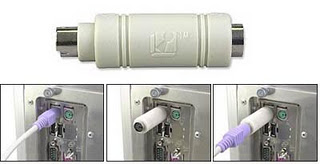
3. Types of  keyloggers There are two types of keylogger hardware keylogger and software keylogger. Software keylogger is install in your computer where as a Hardware keylogger is attached to your keyboard. Looking at below images will clear your mind.
                              HARDWARE KEYLOGGER                                  hardware keyloggers 
 SOFTWARE KEYLOGGER software keyloggers                                4. How to Protect yourself from keyloggers ?Keylogger  can be used by your enemy  to get sensitive information such as your Bank credit card details, or password of any social networking sites etc. In order to be safe keep following points in your mind.
  • Never use your online banking from cyber cafe. If you want to use then you can try this method. open notepad and type anything Then copy and paste each word that comes in your username or password.
  • You can even use above method to protect your facebook profile, yahoo or gmail id.
  • When you enter cyber cafe make sure that no hardware device is attached to keyboard wire. Its look something similar to above image.
Continue Reading

Sunday, 17 November 2013

Microsoft Security Essentials Free Download

Help protect your PC with Microsoft Security Essentials
Microsoft Security Essentials is afree* product you can download to help defend computers runningWindows XP, Windows Vista, and Windows 7 against viruses, spyware, and other malicious software. 
Note: In Windows 8, Windows Defender replaces Microsoft Security Essentials. Windows Defender runs in the background and notifies you when you need to take specific action. However, you can use it anytime to scan for malware if your computer isn’t working properly or you clicked a suspicious link online or in an email message.
Why should I download Microsoft Security Essentials?
  • Comprehensive protection—Microsoft Security Essentials helps defend your computer against viruses, worms, Trojans, and other malicious software and provides you with free spyware protection.
  • Easy to get, easy to use—Microsoft Security Essentials is available at no cost, so there's no registration process that requires billing or personal information collection. It installs after a quick download and Genuine Windows validation and then stays automatically up to date with the latest spyware protection technology and signature updates.
  • Quiet protection—Microsoft Security Essentials doesn't get in your way. It runs quietly in the background and schedules a scan when your computer is most likely idle. You only see alerts when you need to take action.
Microsoft Security Essentials security status
Microsoft Security Essentials has a clean, simple home page that shows the security state of your computer.
A green icon means that the security status of your computer is good. Microsoft Security Essentials is up to date and is running in the background to help protect your computer against malware and other malicious threats. When your computer has an issue that requires your attention, the look of the Microsoft Security Essentials home page changes based on the issue. The status pane turns either yellow or red depending on the situation, and an action button appears in a prominent location on the page with the suggested action.
A yellow icon means that status is fair or potentially unprotected and that you should take some action, such as turning on real-time protection, running a system scan, or addressing a medium-severity or low-severity threat.
A red icon means that your computer is at risk and that you must address a severe threat to protect it. Click the button to take the recommended action and Microsoft Security Essentials will clean the detected file and then do a quick scan for additional malicious software.

Continue Reading

Thursday, 14 November 2013

How to make your own Web Booter/Putty Booter

  • Putty Booter
    • Files to download
    • Getting a VPS
    • Adding the script
    • How to use a putty booter

  • Web Booter
    • Files to download
    • Getting web hosting and domain
    • Adding files to cpanel
    • Changing booter info
 Setting up a Putty Booter
Files to download
First you will need a program like FileZilla or WinSCP. I prefer WinSCP. 


After that you will need PuTTY which is used to send a DDoS attack.

Lastly you are going to need a script. I will give 1 script which i prefer to use and i will teach you how to use it at the end of the tutorial.

Getting a VPSGetting a VPS usually cost money. I will post a few websites i prefer to purchase them from below. They can cost all different prices and i will give you some of the cheapest ones i know that still work good.

You will want to buy a linux VPS. I prefer the operating system to be CentOS or Ubuntu, but you can choose what you want.
http://www.frontrangehosting.com/index.php#openvz-tab - Cheap and i highly recommend this website.
https://hosthatch.com/ - Very good VPS’s but cost more money Adding the script

Once you get your VPS you should be given a root password and the IP for your vps. Once you have that open WinSCP or FileZilla. Once you have WinSCP or FileZilla fill in the textboxes with your VPS information.
[Image: 04.15.2013-20.05.png] 


Once logged in you will want to drag and drop ace.pl into the right side of WinSCP or FileZilla. You can rename it to a name that you will remember.
How to use a putty booter

Once the script is added you are ready to use your PuTTY booter. First open up PuTTY and fill in the info like you did in WinSCP or FileZilla.
[Image: 04.15.2013-20.13.png] 

After you have entered your information press Open. Now that you are in PuTTY as username type in root and as password put in whatever your vps hosting company told you or what you set it to. Now you are ready to use your PuTTY booter you will have to type in one to ddos.
Code:
perl Ace.pl (or whatever you named the file with .pl at the end) <IP> <PORT> 10000 <TIME>
Now that you have typed that in you have learned to make and use a PuTTY booter.

Setting up a Web Booter


Files to download

Firstly you will need a booter source

I recommend this one which was leaked by Tibit.
Getting web hosting and domain

Web hosting a domain usually cost money and you can rarely get a domain for free but you can find hosting some places. You can get any domain you want i prefer using Namecheap to get my domain and you can also get hosting from them. Just search google for hosting and domains if you dont want to use namecheap. The good thing about namecheap is that they accept paypal and most hosting and domain companies don’t.
Once you have your domain and hosting you will want to add the two nameservers that came with your hosting and link the domain to them. On your hosting there should be a tab that says Domain Name and server setup or somthing like that. When you click it there will be 5 slots for nameservers. In the first two enter your nameservers and leave the others blank. It can take a few minutes for the domain to become linked to the hosting.
Adding files to cpanel and setup booter

Now once you have your domain and hosting setup you will want to login to your cpanel. Your hosting should tell you how to do this. Once you are logged into your cpanel go to file manager for your domain. Once you do that you will want to make a new Winwar zip archive and add in the files from the source. For khaotic boot source these files will be in the folder source_files. Drag and drop all of those files into the Winwar zip archive. Now you will want to upload the Winwar zip archive into file manager and extract it.

Once you have done that go back to your Cpanel home and click on MySQL Database wizard or somthing like that. Now you will make a datebase and put in information that you will remember. Once your database is created you can go back to your Cpanel home and then click on phpmyadmin. It will ask for some login info put in the full username which will be some Numbers and letter_<Name you chose>. Also put in the password that you chose. Once logged in go to databases and click on the one that you chose. Now click on import and import the file source.sql which is in the Khaotic Booter source.
Now that you have done that go to the cpanel home and go back to file manager. Now open the Includes folder and right click on db.php and click edit. Now you will want to put in all of your date base information
After you have done that go to your domain and it should work.
Change booter info


Now you will have to change the booter info to yours. Firstly i would want to admin my self by creating a account on your domain and then going into PhpMyAdmin and under users you will see yourself. Change the rank to 1 which is admin 0 is for normal member. After that is done you can login to the admin panel and edit some stuff there. Next go to the includes folder in File Manager and right click init.php then click edit. Now you can edit some information in there to yours. Everything else is pretty straight forward. 
Continue Reading

Saturday, 9 November 2013

How to Remove Write Protection from a Drive or Memory Card?

What is “Write Protection”? 


Nowadays, many storage devices, such as flash drive, USB drive, pen drive, SD card, CF card, memory stick, are    adopted the write protection function that can protect your drive or memory card data from any unexpected change (such as copying, pasting, deleting or cutting), except reading. So, at this point, it is a good property.
However, oppositely, as you have to copy, transfer or write any data, it naturally becomes an obstacle of farther operation, especially for some computer beginner. Therefore, today, we will talk about how to remove write protection for you.

The situations of different users:

Situation1. 

How can I remove the write protection on my USB flash drive?

Situation2.

 As I attempt to copy some photos from the external hard drive to computer, I receive an error message saying: “This Disk is write-protected. Remove the write protection or use another disk…” How could I remove it?

Situation3. 

I cannot format my SD card since it is write-protected. What should I do to disable it?

How to Remove Write Protection from a Drive or Memory Card?

<1>. Remove it by sliding the switch on the one side of a drive or memory card.


You could firstly check whether there is a switch on the one side of the drive or memory card, the switch that can generally close or open the write protection function.
Fortunately, if you find such a thoughtful switch, you could freely slide it to lock or unlock the write protection.
However, if you don’t find such a switch, don’t worry!
Read the next way.


<2>. Remove it by plunging the drive or memory card to a computer.  Unluckily, if there is no such a switch or the switch is gone, you also could try to remove the write protection by yourself.  


1. Plunge the drive or memory card to a computer. (Of course, you should use a card Reader to connect your memory card.)

2. Click “Start” on the taskbar to open “Run” and type in “regedit”.
3. Hit “HKEY_LOCAL_MACHINE” to expand “System”.
4. Find “Current Control Set” in “System” list to click “Control”.
5. Check whether there is a key named “Storage Device Policies” to change the digit in the “DWORD value” box into “0″ and press “OK”.

But, if you cannot find the key named “Storage Device Policies”, you are supposed to create a one: right click “Control” to create a new key and name it as “Storage Device Policies”=> right click this new key to highlight “DWORD Value” and name it as “write protect”=> Double click this “write protect” box to change the number.
<3>. Remove it by trying some special software.There are many related special software out there. You should make your decision carefully.

“Read-only” & “Write Protection”As to a “read only” drive or memory card, “read only” is absolutely another description for people to deliver the same meaning of “write protection”, especially for some computer beginner.
Therefore, in this situation, we could cope with the “read only” problem in the same way as the “write protection” problem.
However, as to a “read only” file or folder on your drive or memory card, the “read only” is quite different from “write protection” in some degree. It is only one of the file or folder attributes, not the whole drive or memory card attributes. Namely, we still could do some changes to the rest files or folders on our drive or memory card after part of files or folders become “read only”. However, we cannot do it to the write protected drive or memory card. That’s the difference.
Therefore, in this case, we could simply remove the “read only” like this:
Right click the file or folder to hit “Properties” and remove the sign in front of “Read only” attributes in “Properties” box.


Source = itrelated
Continue Reading

Thursday, 13 September 2012

DARK ZUNE SKIN PACK


Continue Reading

SKIN PACK INSTALLER SYSTEM


This Program give you a chance to create skin packs for windows and you can share it.
How to install Skin Pack

Continue Reading

Tuesday, 11 September 2012

CHANGE LOGIN SCREEN OF WINDOWS 7

Hello Guyz I am Hashim Shafiq. Today I will show you how to change your login screen of windows 7.I am really bored by using the same Windows Login Screen. I want to change my login screen.
So I think it may be

Continue Reading

ANDROID SKIN PACK FOR WINDOWS 7


Attention Windows 7 users. Here is a new skin pack for Windows 7 users and this is from Android.
Android launched the Android Jelly Skin pack for Android users. But now this is also available for Windows 7 users.
It will make your desktop more attract full and make it more customizable.

Continue Reading

Monday, 10 September 2012

START MENU X


Start Menu X is a alternative of Microsoft Windows Start menu. It is a very powerful tool for professional who needs to run many application directly from start menu. It totally changes the appearance of the Microsoft Windows

Continue Reading